VSCode Remote SSH
This is the fast path to more compute without buying hardware: provision a large Azure VM (e.g. memory-optimised E-series / R-series for RAM-heavy work — up to terabytes on the largest SKUs), connect VSCode, run there, then deallocate.
Full SSH setup (keys, ssh -i, ~/.ssh/config, troubleshooting) lives in Secure Shell (SSH) — start there if you have not connected before.
Using VSCode to Connect to a Remote Server
Visual Studio Code (VSCode) enables you to connect directly to a remote server from within the editor. This allows you to utilize a remote server as your computing environment right from your local machine. You can provision a powerful temporary server to execute your code and shut it down when finished. With this setup, you can transfer your files to the server, run your code, and then retrieve the results back to your local system.
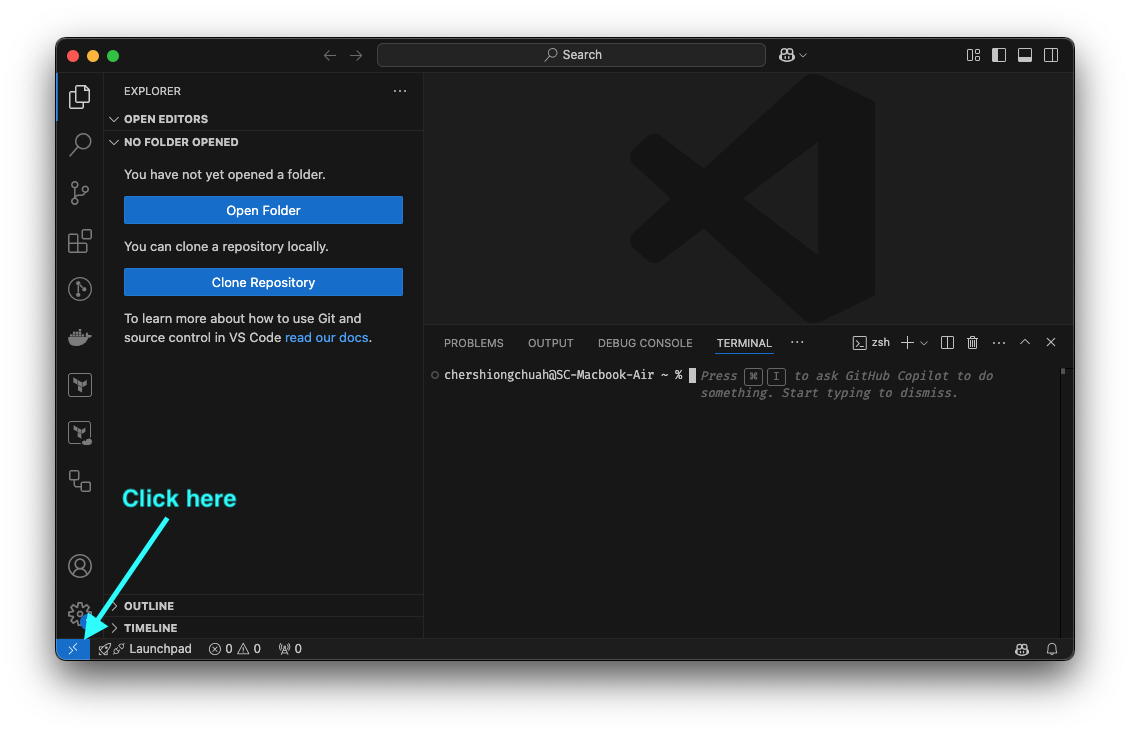
- Click the blue connect button in the bottom left
- Click
Remote-SSH: Connect to Host - Enter
ssh -i ~/.ssh/azure_key azureuser@<server-ip>(or use yourHost azure-vmshortcut from~/.ssh/config) - Click
Connect
Warning
Deallocate or delete the Azure VM / resource group when finished — an idle large VM is the easiest way to burn budget.