Secure Shell (SSH)
Secure Shell (SSH) is a protocol that allows you to securely connect to a remote server over an unsecured network. It provides a safe way to access your server's shell (command line) from anywhere in the world. This guide will walk you through the basics of SSH and how to connect to a remote server.
What You’ll Need
- SSH client on your local machine (e.g., OpenSSH).
- SSH key pair.
- Remote server with SSH enabled.
Step 1: Install an SSH Client
Most operating systems come with an SSH client pre-installed. Here’s how to check and install SSH on different systems:
Open a terminal and type ssh -V to check if OpenSSH is installed. If not, you can install it using your package manager (sudo apt-get install openssh-client for Ubuntu/Debian or brew install openssh for macOS with Homebrew).
Windows 10/11 include OpenSSH built in. In Command Prompt (cmd.exe) type ssh -V to check. If missing, install via Settings > Apps > Optional Features > OpenSSH Client. (PuTTY also works: https://www.putty.org/, but the commands below assume OpenSSH.)
Step 2: Generate SSH Keys
SSH keys use public-private cryptography to create a 'key pair' that allows secure communication between your local machine and the server. Here’s how to generate SSH keys:
-
Open your terminal. (Suggestion: navigate to ~/.ssh folder, create it if it doesn't exist)
Bash -
Run the following command to generate a key pair
Bash -
Follow the prompts to save the key pair. You will be asked for a passphrase — set one (do not leave it empty) and store it in your password manager. By default, the file will be named
id_rsaandid_rsa.pubin the ~/.ssh directory. Use one key per laptop (not one per server) and identify servers via~/.ssh/config— e.g. if you named the keyazure_key, this generatesazure_key(private key) andazure_key.pub(public key). Lock the private key down:Bash -
View the public key by running:
Bash
When setting up your VM on Azure (Portal > Virtual Machines > Create > SSH public key source), paste the contents of the .pub file. Now you are ready to connect with your private key file.
Warning
Never share your private key with anyone. Keep it secure and never expose it to the public. These files are your digital keys to the kingdom.
Step 3: Set Up Your Server and Obtain Server Information
To connect to your remote server, you’ll need:
- Server IP Address or Domain Name: This is the address of your server that you have provisioned. You can use the domain name once you have set up DNS records.
- Username: The user account on the remote server you’ll be accessing. Azure defaults to the username you chose at VM creation (commonly
azureuser); Ubuntu images do not userootby default. - SSH Key: When creating your Azure VM, provide the public key as part of the setup process (or use
ssh-copy-id -i ~/.ssh/azure_key.pub azureuser@<server-ip>for an existing VM).
Step 4: Connecting to the Remote Server
Open your terminal. In MacOS, click the top menu Shell > New Remote Connection
Type ssh -i ~/.ssh/azure_key azureuser@<server-ip> and press Enter. Replace azureuser with your VM username, <server-ip> with your VM's public IP address.
For example: ssh -i ~/.ssh/azure_key azureuser@20.117.XX.XX
Flag order matters
The -i option must come before user@host (ssh [options] [user@]hostname). Putting -i at the end can be misparsed as a remote command.
How to Copy Files to and from the Server
Technique 1: SCP (Secure Copy)
You can use the scp command to copy files to and from the server. Here are some examples:
Copying files to a server: scp -i <identity_file> file.txt username@server_ip:/remote/directory
Copying files from a server: scp -i <identity_file> username@server_ip:/remote/file.txt /local/directory
Technique 2: SFTP (Secure File Transfer Protocol)
Use a sftp client - such as FileZilla - to connect with the server using your ssh keys and transfer files.
Using VSCode to Connect to a Remote Server
Visual Studio Code (VSCode) enables you to connect directly to a remote server from within the editor. This allows you to utilize a remote server as your computing environment right from your local machine. You can provision a powerful temporary server to execute your code and shut it down when finished. With this setup, you can transfer your files to the server, run your code, and then retrieve the results back to your local system.
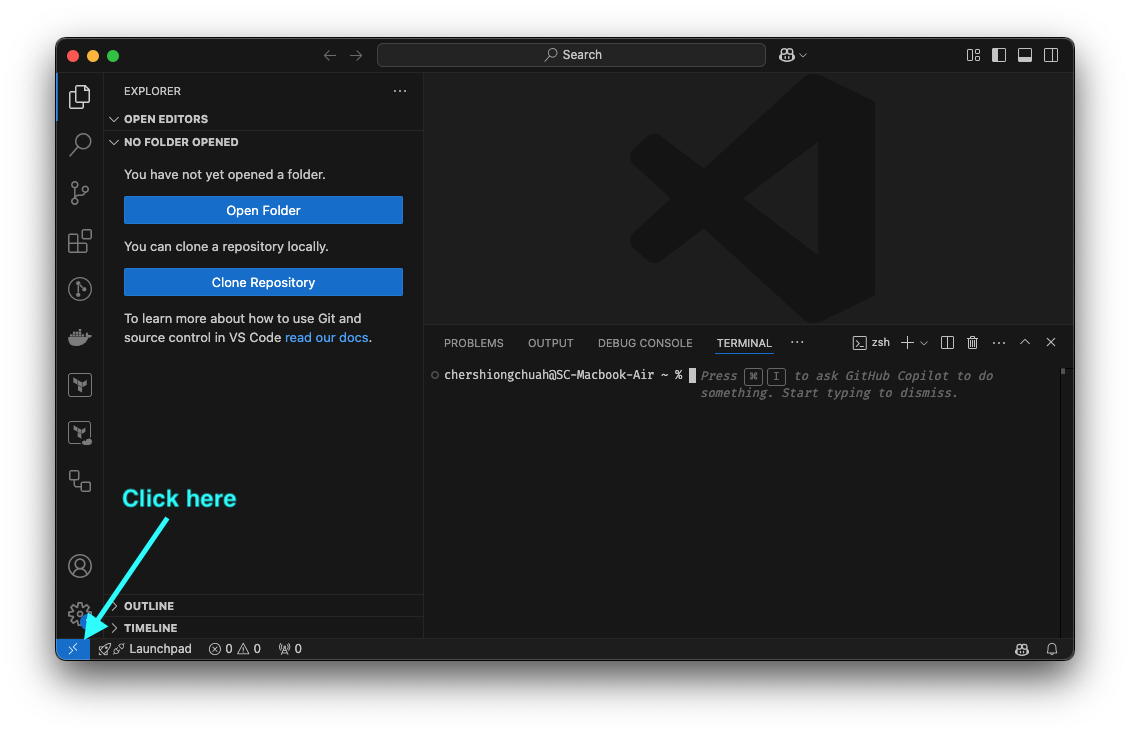
- Click the blue connect button in the bottom left
- Click
Remote-SSH: Connect to Host - Enter
ssh -i ~/.ssh/azure_key azureuser@<server-ip> - Click
Connect
Tip: save this in ~/.ssh/config so you can just ssh azure-vm:
Troubleshooting
If you encounter issues connecting to your server, consider the following:
- Check your network connection: Ensure you have internet access.
- Verify server credentials: Make sure the IP address, username, and password or SSH keys are correct.
- Firewall settings: Ensure that your Azure Network Security Group allows SSH (port 22) from your IP.
- SSH service status: Confirm that the SSH service is running on the server (
sudo systemctl status sshon Ubuntu).
Conclusion
SSH is an essential tool for securely connecting to remote servers. Using this technique, you now have the capability to spin up powerful virtual computers in the cloud and are no longer constrained by your computer's limitations.